Get to know Kandao Meeting Ultra Standard
Standalone Mode Introduction
Screen Mirroring
Share Screen in a Conference
USB Mode Introduction
Description of Conference Views and Resolution
Tech Specifications
User Guide
2026-02-26


First Use

Tutorial

Daisy Chaining Installation Tutorial Standalone Mode

Daisy Chaining Installation Tutorial USB Mode

How to Generate Meeting Invitation QR Code

Smart Devices Screen Sharing

AI Dereverb

Kandao Meeting App is a powerful management tool designed specifically for Kandao 360° video conferencing devices (currently supported models: Kandao Meeting Ultra and Kandao Meeting Ultra Standard). Whether you're using iOS or Android, you can easily configure the devices, control them in real time, and quickly start meetings while efficiently managing your equipment.

2026-02-05
V3.0.0
Before Use
Please ensure your Kandao meeting devices are updated to firmware V4.7 / S4.7 or later to guarantee proper functionality.
New Features
1. Virtual Remote Control
Use the App as a virtual remote control with trackpad-style touch gestures to operate your meeting device from a distance—no need to approach the device.
2. Firmware Update Notifications
Receive firmware update notifications in the App to stay informed of available updates and keep your meeting devices up to date.
3. Quick Network Setup
Connect your meeting device to a personal Wi-Fi network through the App and complete network configuration without using a display.
4. Device Name Customization
Rename your meeting device directly in the App for easier identification during daily use.
5. Clipboard Quick View & Copy
View clipboard content from the meeting device directly in the App and copy it to your phone, with access to the 10 most recently copied items.

2026-02-05
V3.0.0
Before Use
Please ensure your Kandao meeting devices are updated to firmware V4.7 / S4.7 or later to guarantee proper functionality.
New Features
1. Virtual Remote Control
Use the App as a virtual remote control with trackpad-style touch gestures to operate your meeting device from a distance—no need to approach the device.
2. Firmware Update Notifications
Receive firmware update notifications in the App to stay informed of available updates and keep your meeting devices up to date.
3. Quick Network Setup
Connect your meeting device to a personal Wi-Fi network through the App and complete network configuration without using a display.
4. Device Name Customization
Rename your meeting device directly in the App for easier identification during daily use.
5. Clipboard Quick View & Copy
View clipboard content from the meeting device directly in the App and copy it to your phone, with access to the 10 most recently copied items.

Kandao Meeting Ultra标准无屏版;Kandao Meeting Ultra Standard
2026-02-05
Available for in-device update
Firmware S4.7
1.Support use of Kandao Meeting hand machine App's imaginary control function.
2. Correct the knowledge problem.

The Kandao Meeting Omni integrates multiple video conferencing cameras of Kandao, to cover larger rooms and involve more participants.
If you have any questions, please contact us.
Email: service@kandaovr.com

2025-07-24
Windows V1.6.1.9
1. Optimize the clarity of Zoom connection.
2. Optimize the experience of using Meeting Pro.
3. Fix some known issues.
How to solve the issue ‘This device isn't Play Protect Certified’?
To resolve the issue that ‘This device isn't Play Protect Certified.’, please ensure that your firmware is up-to-date and complete the GSF ID registration process. Here are the steps to follow:
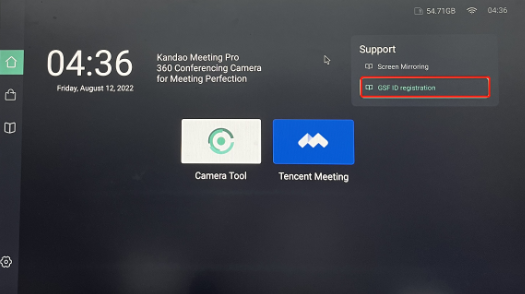
1. Navigate to the home page of the Meeting camera built-in system.
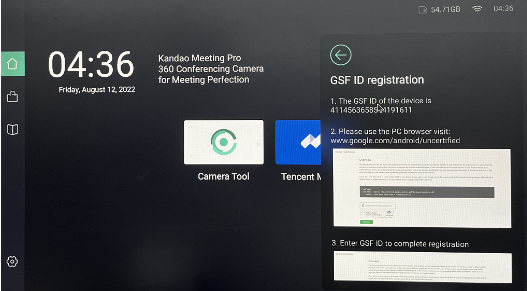
2. Click on "GSF ID Registration."
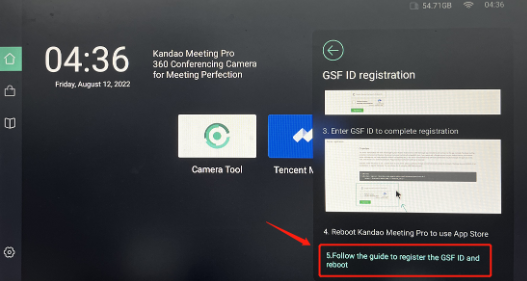
3. Slide down and click on step 5.
4. Follow the guide to register the GSF ID.
5. Reboot the system.
Please be aware that there might be some network delays before the changes take effect (The registration processing time varies due to Google's system procedures, not because of any product issues. We appreciate your patience during this wait).
If you have any further questions or encounter any issues during this process, please feel free to contact us. We are here to assist you.
(If the issue persists for an extended period, you may consider resetting the device to its factory settings and repeating the registration process.)
How to Enter Text in Conference Software (e.g., Teams) on the Conference Device?
Activate Air Mouse Mode
· Press the "Air Mouse Mode" button on the remote control (usually marked with a mouse icon). A pointer will appear on the screen, which you can navigate using the remote.
Select the Input Field
· Move the pointer to the desired input field (e.g., chat box or search bar) and press the "OK" button on the remote to open the on-screen keyboard.
Input Text Using the On-Screen Keyboard
· Use the air mouse to click the letters and symbols on the on-screen keyboard to enter text.
Connect the Keyboard
· Plug in the keyboard via USB or pair it via Bluetooth with the conference device. Ensure the connection is established successfully.
Enter Text Directly
· In the input field of the conference software, type text directly using the keyboard without additional configuration.
Does Kandao Meeting Ultra Standard store or transmit any user's private information or behavior data?
Kandao Meeting Ultra Standard does not store or transmit any user's private information or behavior data. The AI algorithm is entirely local and offline, with no online settings. The privacy policy pertains to website and official store visits and is unrelated to Kandao Meeting Ultra Standard.



